WaterTracker Setup and Usage Guide
This guide mirrors the real WaterTracker app flow: setup goal, configure reminders, manage drinks, log intake, monitor trends, and secure/backup your data.
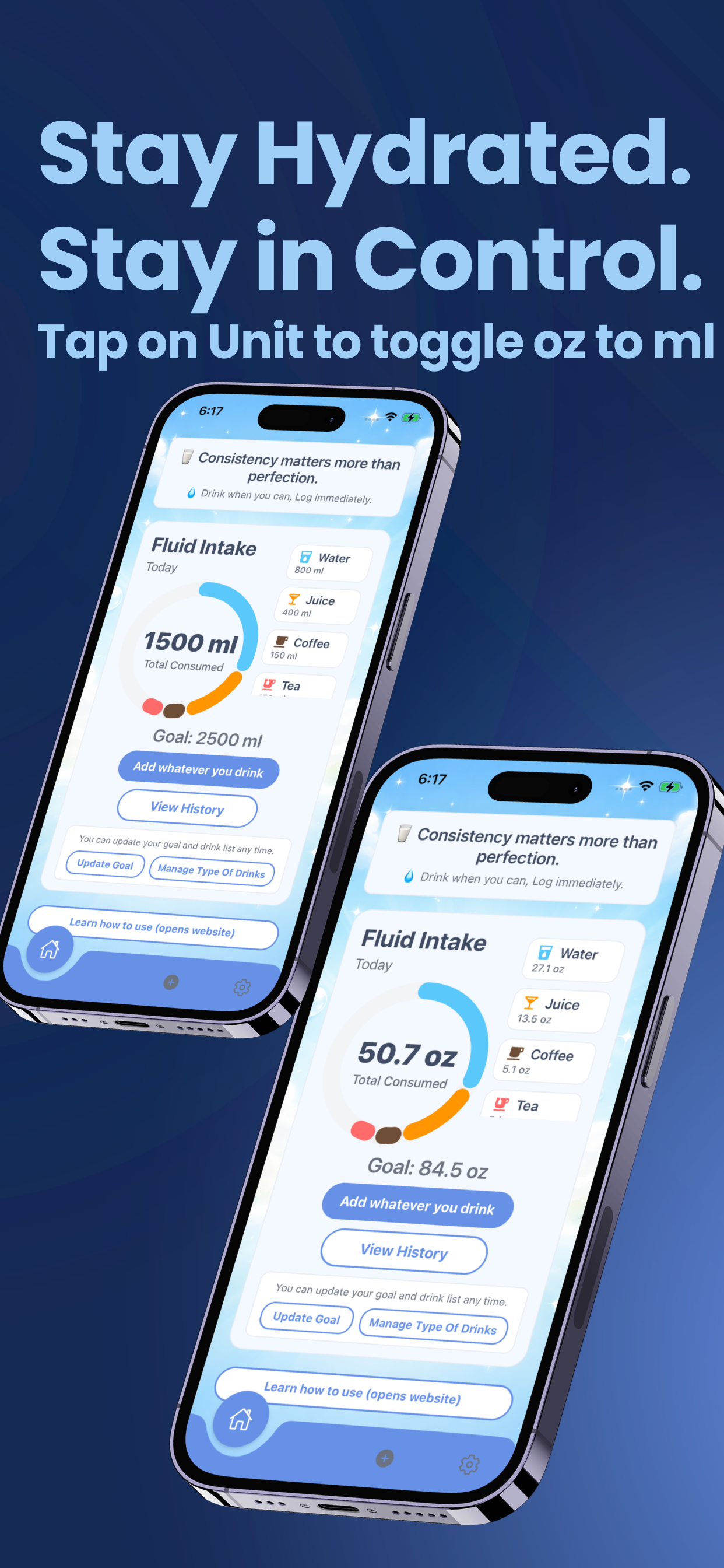
Start from Home Dashboard
Open the app and begin with the dashboard. It shows your current progress and helps you quickly start logging.
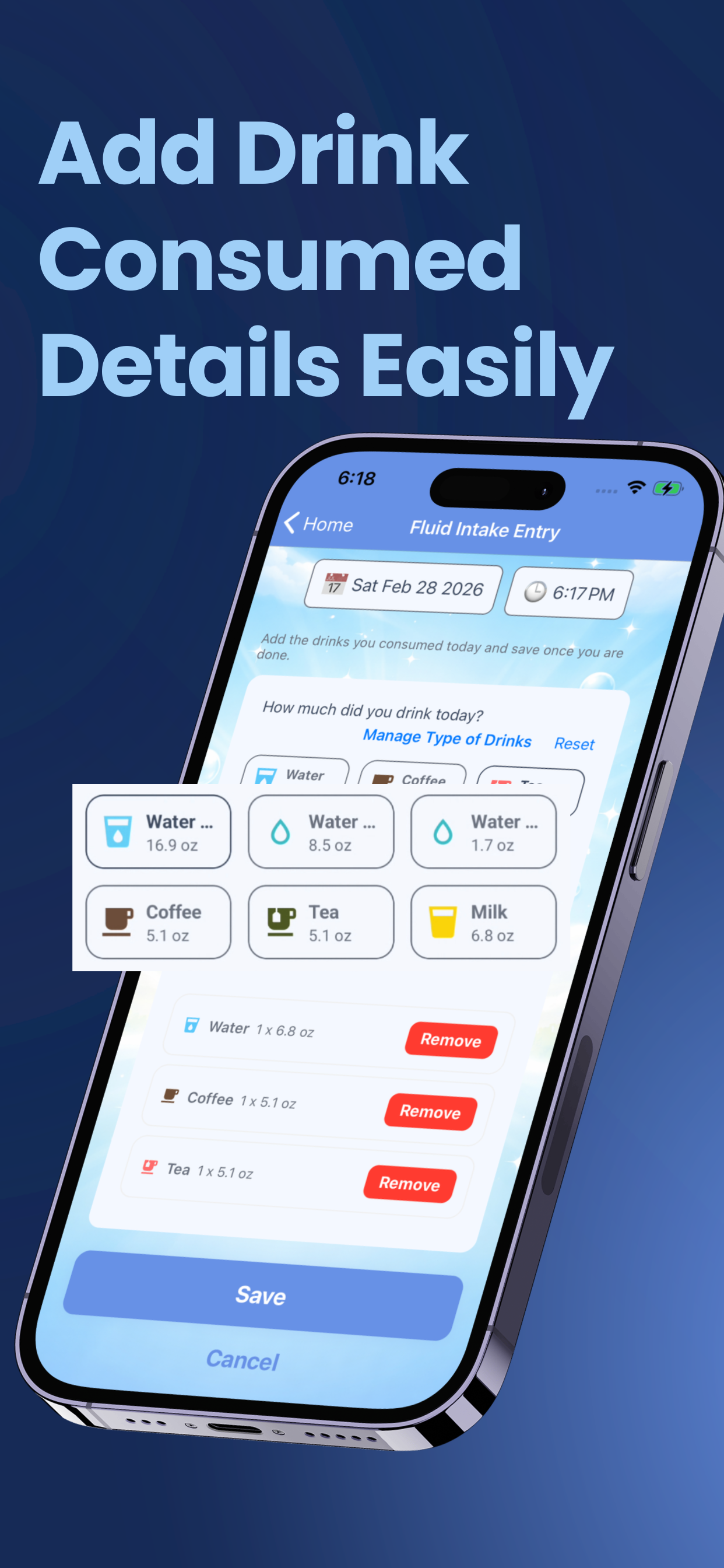
Add Drink Consumed Details
Use Fluid Intake Entry to capture what you consumed with date/time control and per-drink quantity.
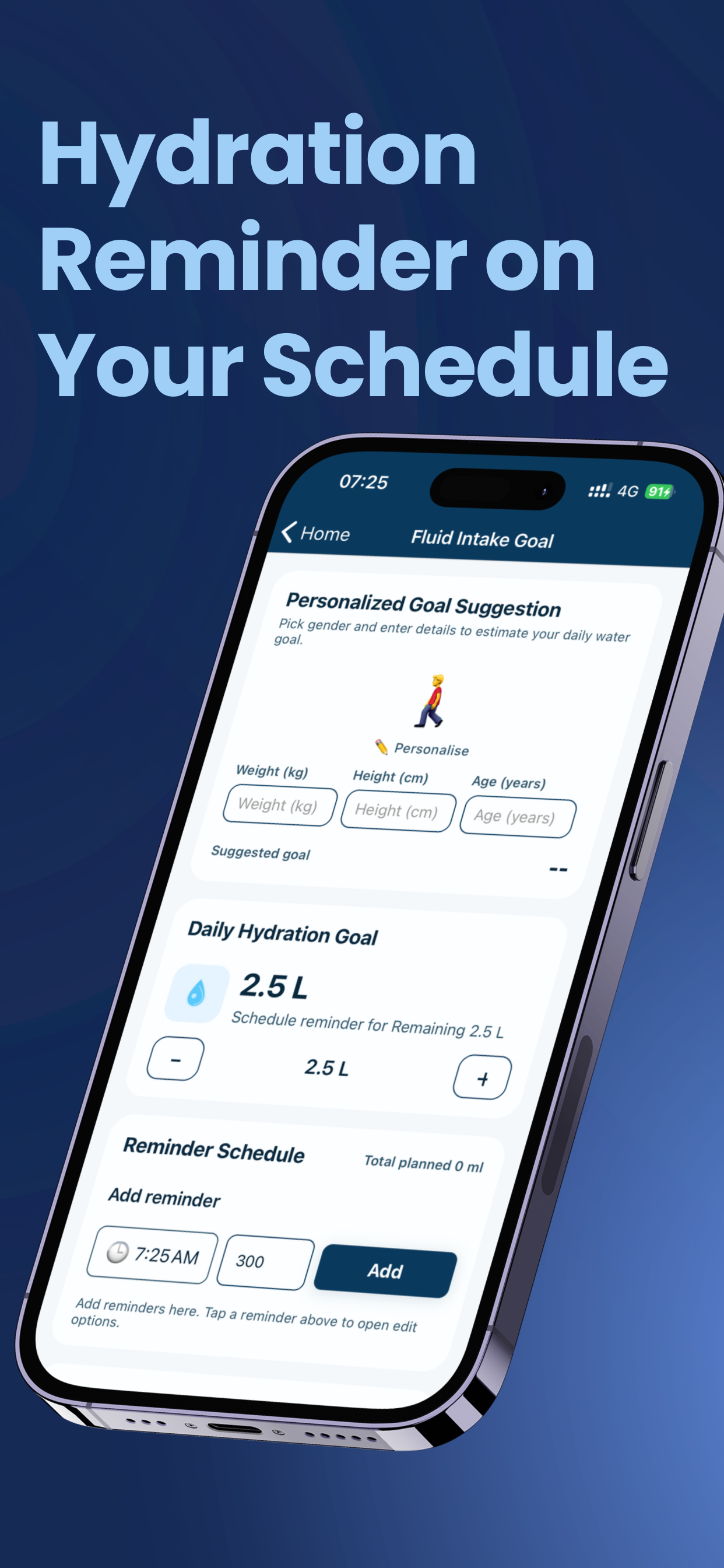
Set Goal and Reminder Schedule
Configure hydration target and reminder timings so the app can support your routine consistently.
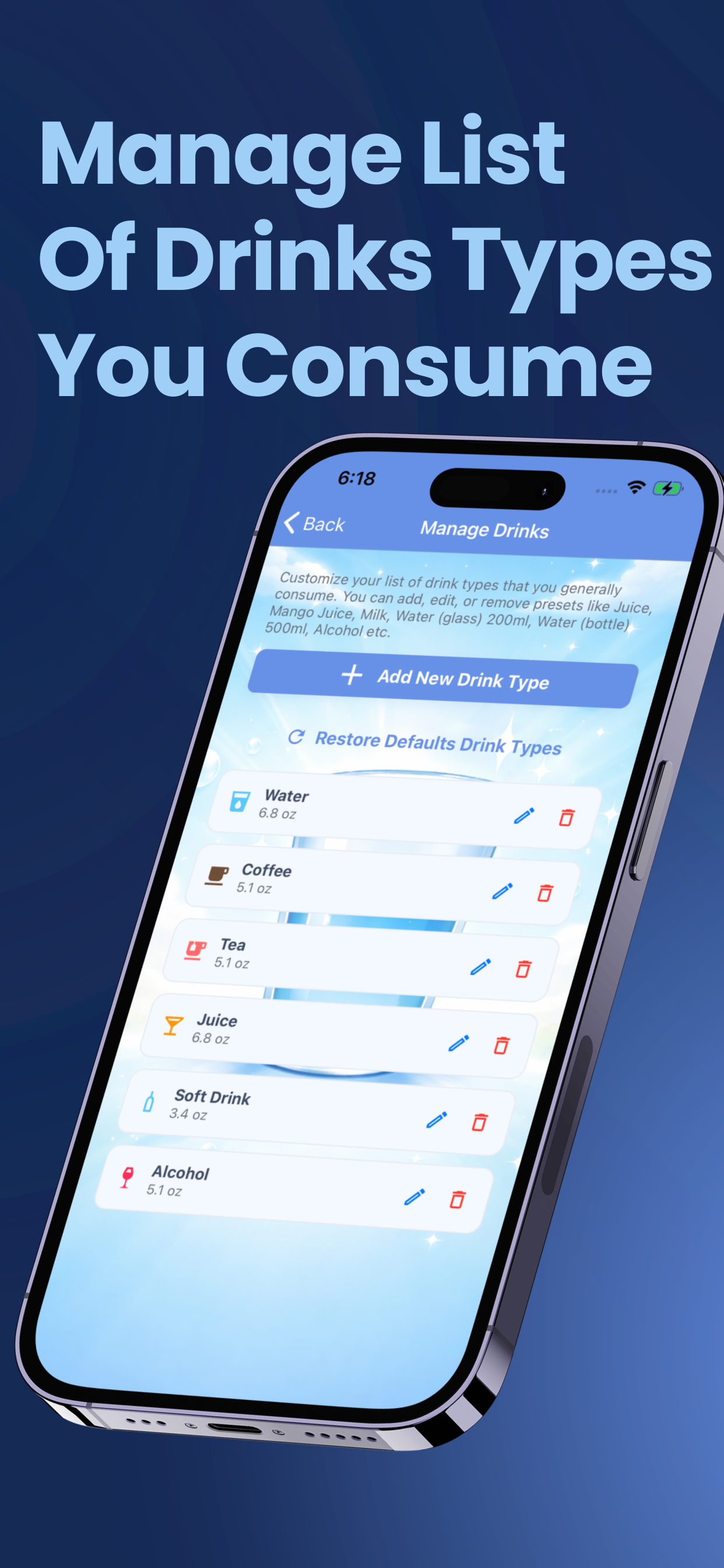
Manage Drink Types
Customize drink list to match your routine so logging becomes faster and more accurate.
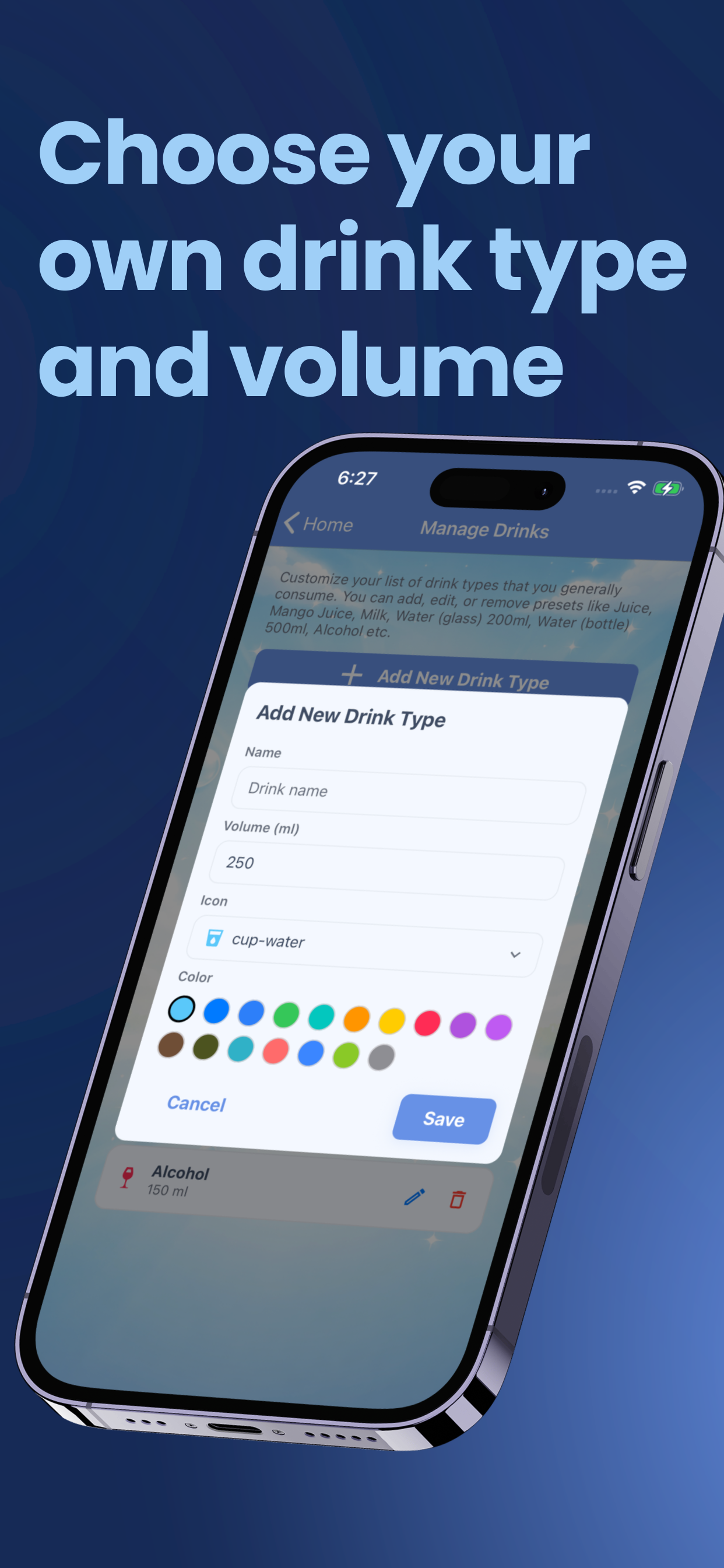
Create Custom Drink and Volume
Add your own drink type with icon, color, and volume for precise hydration tracking.
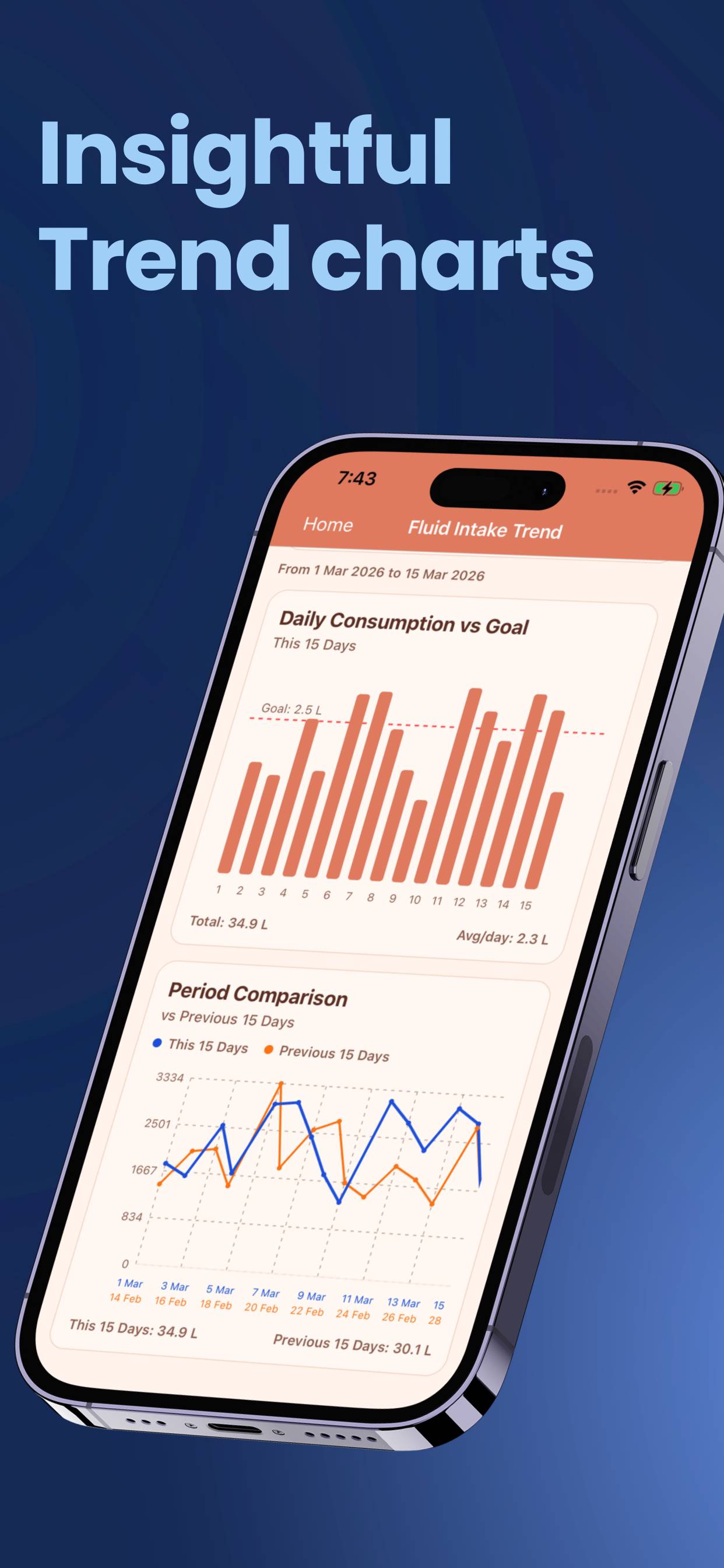
Review Hydration Trends
Use trend charts to see consistency and compare daily intake against your goal over time.
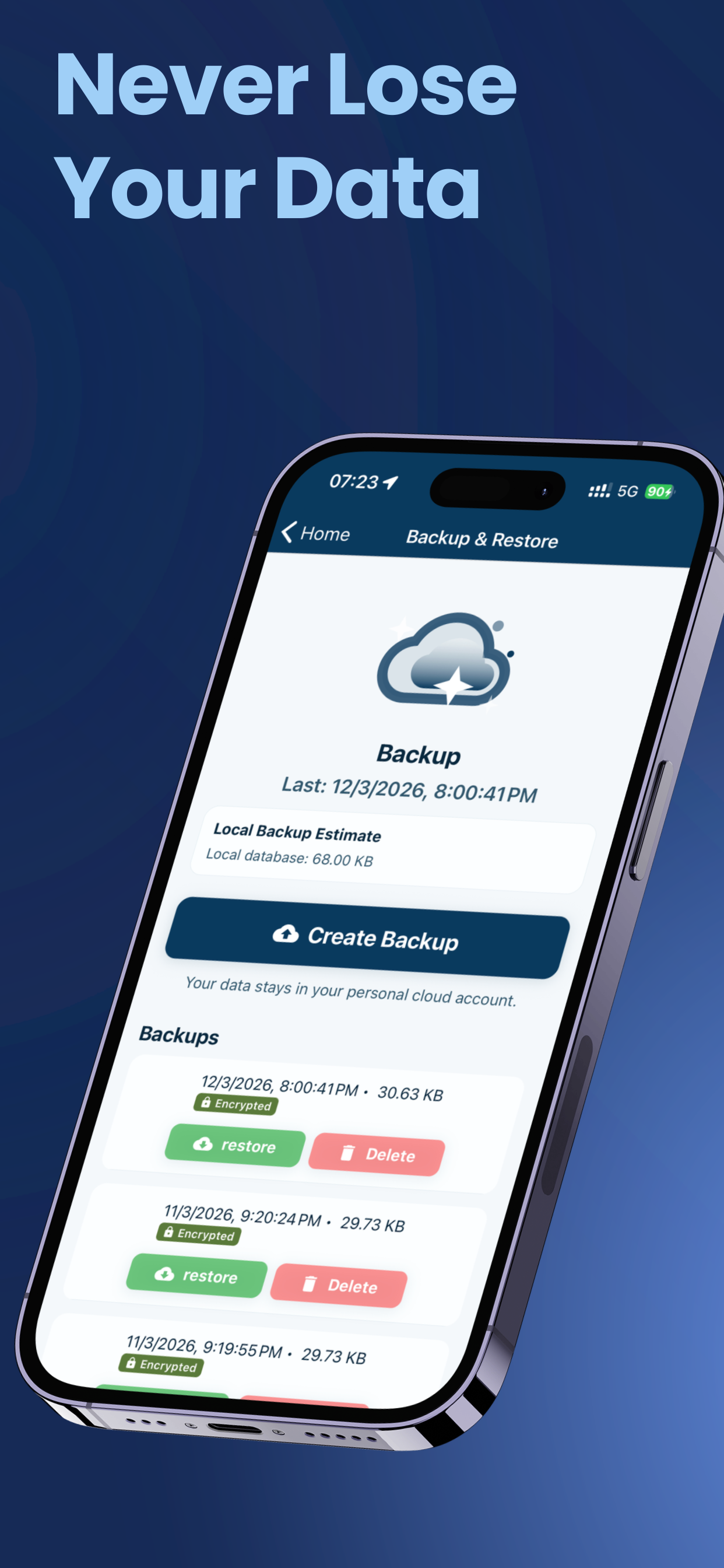
Backup and Restore Data
Use backup and restore when changing devices or before major changes so hydration history stays safe.
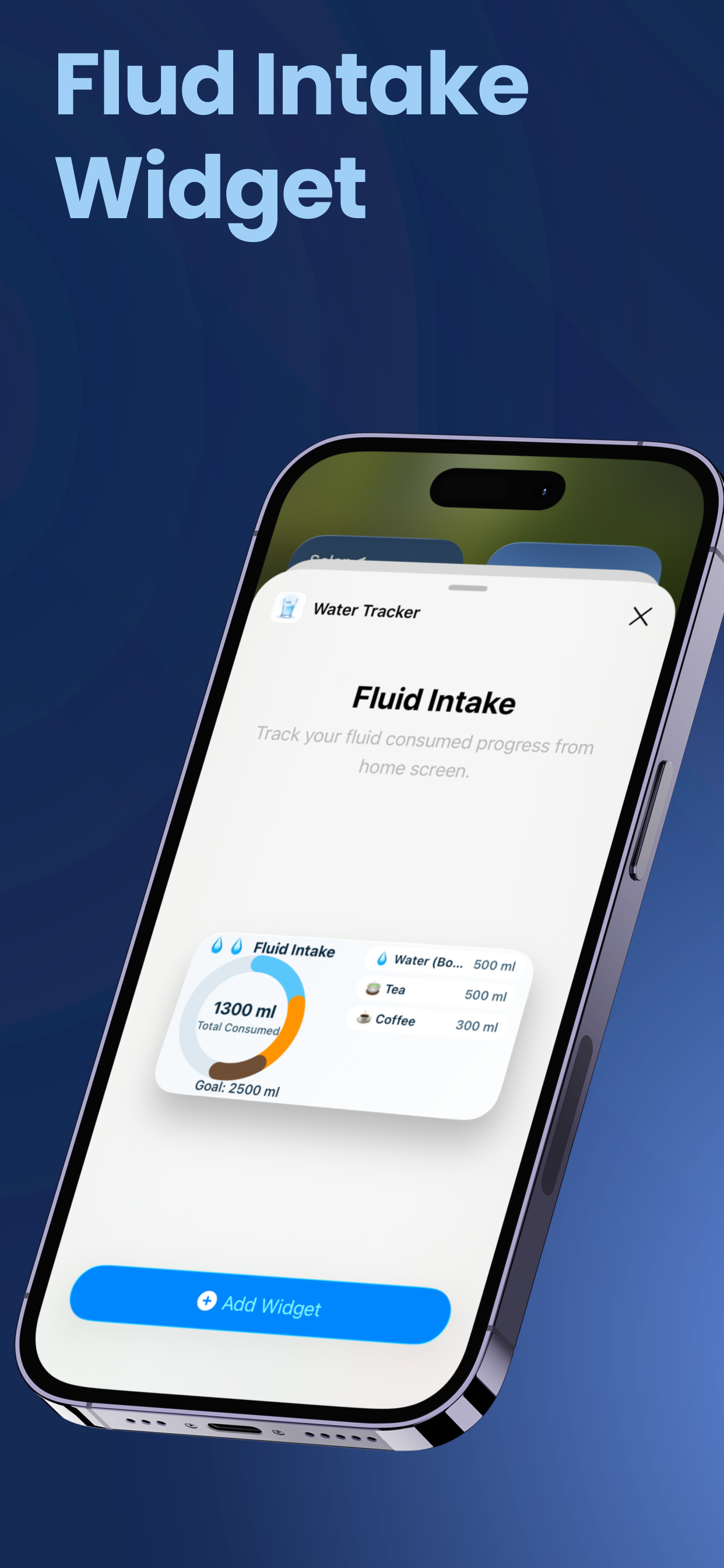
Enable Fluid Widgets
Widgets help you check intake and stay engaged from your device home screen.
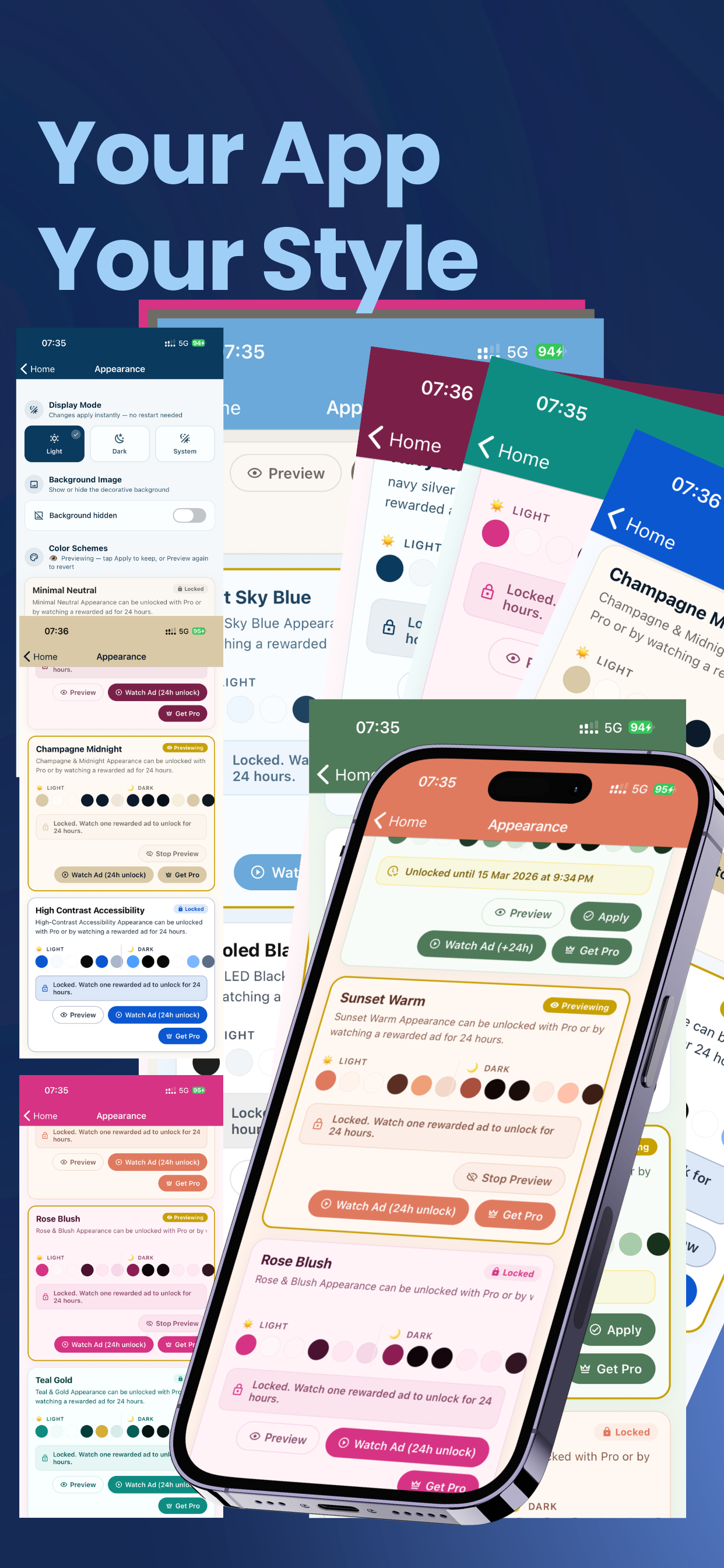
Personalize Appearance
Choose theme and appearance options to make the app feel natural for long-term use.
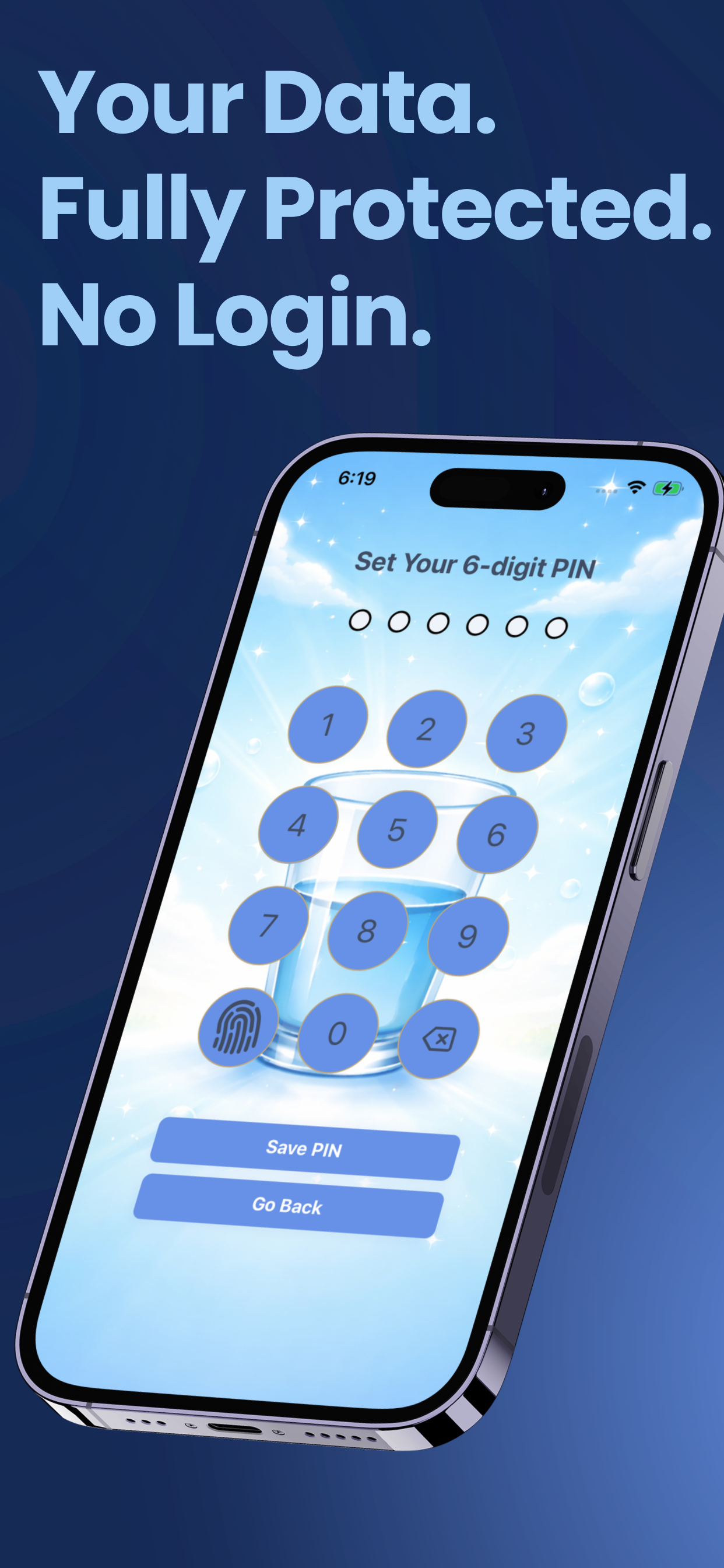
Protect Data with Privacy Controls
WaterTracker follows local-first design. Add lock controls for extra protection when sharing your device.
Quick FAQ
No. Core tracking flow is designed to work without account signup.
Yes. Manage Drinks lets you add your own drink types with icon, color, and volume.
Yes. Unit preference can be toggled in the app and is reflected in tracking views.
Start with goal setup, then reminders, then drink list. After that, use trends weekly to improve consistency.