Free background remover · On-device AI
Remove the background.
Keep the photo private.
Turn a portrait, product shot, or everyday photo into a clean cutout—then make the background transparent, white, a custom color, or an image you choose. Refine the mask and tune difficult edges, all on your phone.
Many “free online background remover” tools begin with an upload. Subra AI brings the model to your device, so personal portraits, unreleased products, client assets, and family photos can stay there.
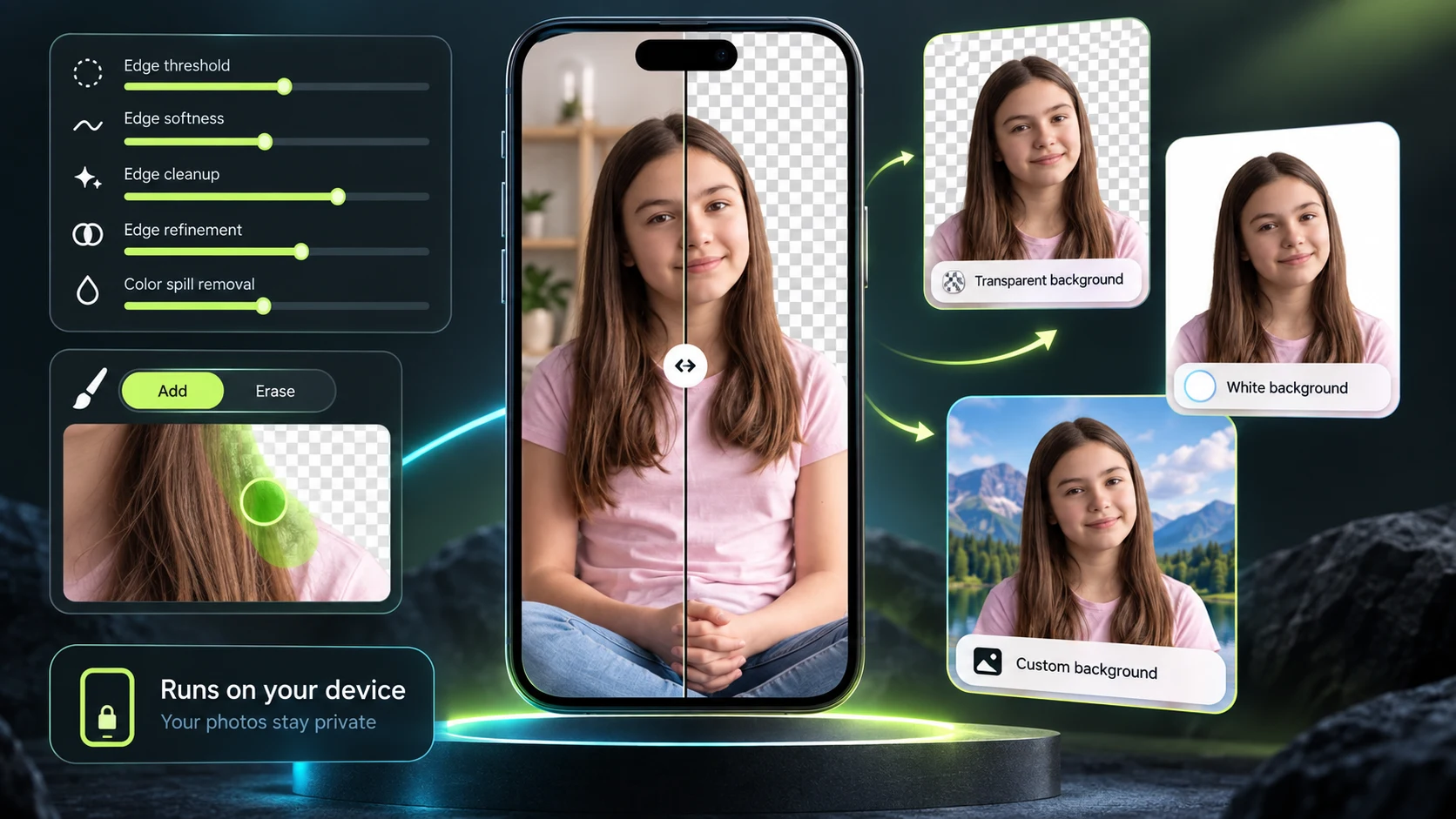
Processing happens on your hardware instead of sending each source photo to cloud AI.
Start with an AI-generated mask and keep control over the details that matter.
Finish with transparency, white, color, or a replacement image—not just an empty background.
How to remove an image background for free
Six steps. Your photo never needs a cloud detour.
You get the speed of automatic background removal with the final say of a hands-on photo editor.
- 01
Choose a photo
Open your image in Subra AI. The photo stays on the device while the on-device model separates the subject from its background.
- 02
Inspect the cutout
Use the split comparison to move between the original and the result. Check hair, clothing, hands, product corners, and other difficult boundaries.
- 03
Refine the mask
Erase unwanted areas or restore parts of the subject. Choose the brush shape and hardness that suit the correction you need.
- 04
Tune the edges
Adjust mask threshold, softness, cleanup, refinement, and color-spill removal—or start with Natural, Sharp, or Hair Detail.
- 05
Choose the new background
Keep it transparent, make it white, select a color, or place the subject over another image you choose.
- 06
Export and save
Review the final composition, then export it from the app. No personal-image upload is required for the editing workflow.
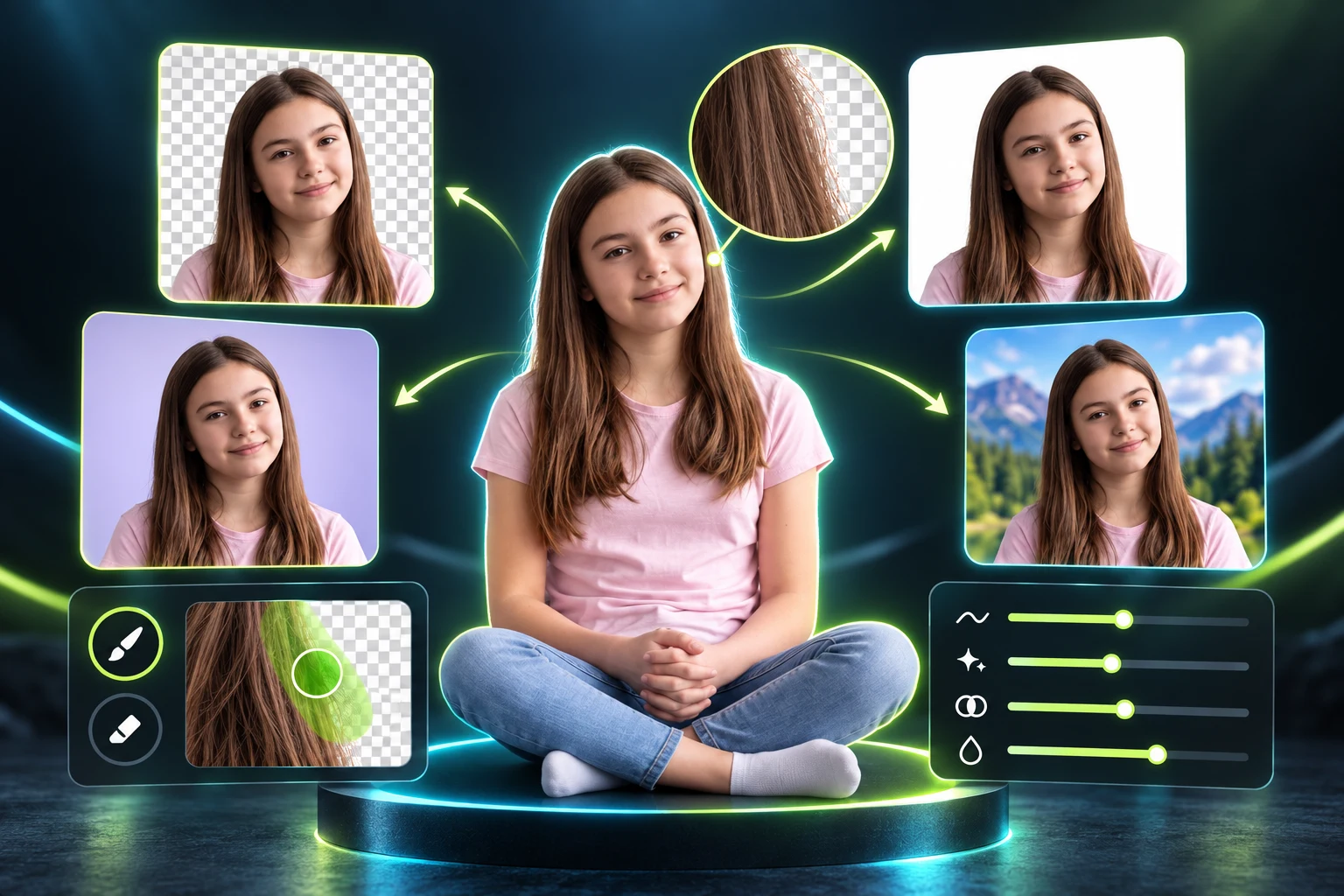
Your cutout, your context
Transparent is only the beginning.
A clean cutout can become a professional headshot, a marketplace-ready product image, a thumbnail, a pitch-deck visual, or a social asset. Choose the finish that serves the job.
- Transparent backgroundKeep the subject ready for another design or composition.
- White backgroundCreate a clean, distraction-free profile or product presentation.
- Color or custom imageMatch a brand palette or place the subject into another scene you select.
Precision when one tap is not enough
Keep the speed. Take back the edges.
Automatic segmentation gets you started. Subra AI gives you practical controls for the places where a person—not an algorithm—should make the final call.
Refine the mask
Erase background remnants or restore parts of the subject with round or triangle brushes and hard or soft behavior.
Adjust the edge
Tune threshold, softness, cleanup, refinement, and color spill to improve uncertain borders.
Start with a preset
Natural, Sharp, and Hair Detail offer sensible starting points before you make more precise changes.
For founders, creators, and small teams
A visual-content workflow without a per-photo privacy trade.
Remove distractions from founder headshots. Standardize product listings on white. Prepare customer-approved cutouts for campaigns. Build pitch-deck compositions while traveling. The work stays available even when the Wi-Fi does not.
On-device processing also changes the product conversation: less dependence on an image-upload pipeline, fewer personal assets moving between services, and a clearer privacy story for customers and collaborators.
Honest boundary: complex hair, motion blur, low contrast, transparent objects, and shadows may still need manual refinement. Subra AI provides those controls instead of pretending every cutout is perfect.
Frequently asked questions
Everything to know before your first cutout.
How can I remove an image background for free?
Download Subra AI, open the background-removal tool, choose a photo, review the automatically created mask, refine it if needed, choose a transparent, white, color, or image background, and export the result. The feature is designed to run locally on your device.
Can I remove a photo background without uploading it online?
Yes. Subra AI performs this background-removal workflow on device, so your source image does not need to be sent to a cloud AI service. Download the app and required model resources before working offline.
Can I change the background of a photo to white?
Yes. After separating the subject, choose white as the replacement background. This is useful for profile pictures, marketplace listings, catalog images, documents, and clean product shots.
Can I make the background transparent?
Yes. You can keep the extracted subject on a transparent background and export the result for designs, presentations, product listings, thumbnails, or later editing.
Can I replace the background with another picture or color?
Yes. Subra AI supports a transparent result, a plain white or custom-color background, and a replacement image selected by you.
What if the automatic background removal misses hair or small details?
Use mask refinement to erase or restore regions, then adjust threshold, edge softness, edge cleanup, edge refinement, and color-spill removal. Natural, Sharp, and Hair Detail presets provide useful starting points.
Does Subra AI work without internet?
The editing workflow runs on device and can work offline after the app and any required model resources are already downloaded. You do not need an active connection to send each personal photo to a server.
Is Subra AI useful for founders and small businesses?
It can help create consistent profile images, product cutouts, listing photos, pitch-deck assets, social posts, and marketing compositions on a phone—without adding a per-image cloud workflow or exposing customer and product imagery to a third-party image service.
Can I remove backgrounds from multiple images at once?
This page does not promise bulk processing. Subra AI currently focuses on a controlled, image-by-image mobile workflow with visual review, mask refinement, edge adjustment, and export.
Will the exported image always be HD quality?
Output quality depends on the source image, subject complexity, device resources, mask quality, and export settings. Start with a clear, well-lit image and inspect detailed edges before saving.
Your photo. Your device. Your decision.
Remove the background—not your privacy.
Download Subra AI and create transparent, white, or custom-background images for free, even when you are offline.